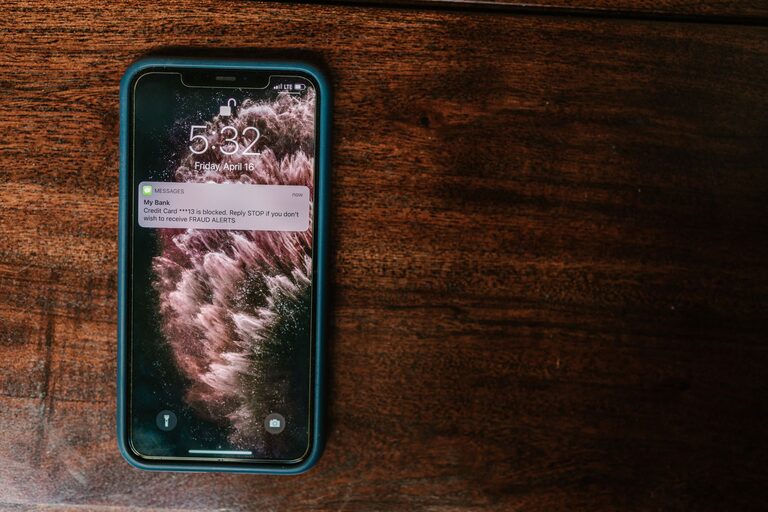
In today’s connected world, notifications from our phones, computers, and apps can quickly become overwhelming. They often interrupt our focus, contribute to stress, and make it difficult to be present in the moment. Setting boundaries with notifications is essential for managing your time better and improving mental well-being.
This post offers practical tips to help you take control of your notifications without missing important updates.
Why Setting Boundaries with Notifications Matters
Notifications are designed to capture your attention. When you receive constant alerts, it can lead to:
– Frequent distractions
– Reduced productivity
– Increased anxiety or stress
– Difficulty focusing on tasks
By setting boundaries, you create space to focus on what matters most. This, in turn, helps you feel more balanced and in control of your time.
Step 1: Assess Your Current Notification Habits
Before making changes, take a moment to review how many notifications you receive daily and which ones demand your attention.
– Look at your phone and computer notifications.
– Identify apps that send frequent alerts.
– Notice which notifications are unnecessary or distracting.
This assessment helps you decide which notifications to keep and which to mute or remove.
Step 2: Customize Notification Settings
Most devices and apps allow you to customize notification preferences. Here are some approaches:
Use Do Not Disturb Mode
– Enable this mode during focused work hours, meetings, or at night.
– Customize exceptions so only urgent contacts or apps can alert you.
Disable Non-Essential Notifications
– Turn off notifications from apps that aren’t critical, like games or promotional messages.
– Consider setting notifications to “silent” so they don’t make sounds or vibrations.
Schedule Notification Windows
– Some devices let you schedule when you receive notifications.
– For example, allow social media notifications only during lunch or after work.
Step 3: Prioritize Notifications by Importance
Not all notifications need immediate attention. Consider categorizing alerts:
– High priority: Work emails, important calls, calendar reminders.
– Medium priority: Messages from close friends, social media updates.
– Low priority: Promotions, app updates, non-urgent news.
Adjust app settings accordingly, so only high-priority notifications interrupt you right away.
Step 4: Use App Features to Manage Notifications
Many apps have built-in tools to help limit notifications.
– Email: Use filters or rules to prioritize emails and mute less important ones.
– Social media: Use “mute,” “snooze,” or “do not disturb” options on specific accounts or groups.
– Messaging apps: Set status to “Do Not Disturb” or disable notifications during work hours.
Step 5: Create Tech-Free Zones and Times
Physical boundaries can reinforce digital ones.
– Designate areas like the dining table or bedroom as tech-free zones.
– Set specific times, such as during meals or right before bed, when you avoid checking devices.
– Use these moments to relax, focus on family, or practice mindfulness.
Step 6: Communicate Your Boundaries
Let friends, family, and colleagues know about your notification preferences.
– Share when you will be available and when you won’t respond immediately.
– Encourage understanding that you’re managing notifications to be more present and productive.
Step 7: Regularly Review and Adjust
Notification needs may change over time.
– Schedule regular check-ins to review your settings.
– Adjust based on new apps, work demands, or personal preferences.
This ongoing process ensures your notification boundaries stay effective.
Tools and Tips for Success
– Notification Summary: Some smartphones provide a summary of notifications at specific times to reduce constant pings.
– Focus Modes: Use built-in focus or concentration modes to limit alerts during intense work periods.
– Third-Party Apps: Explore apps that help manage and schedule notifications.
Conclusion
Setting boundaries with notifications is a vital step toward creating a balanced digital life. By taking control of your alerts and customizing settings, you reduce distractions and improve your focus and well-being.
Start small—review your notifications today and try one or two of these tips. Over time, these changes can make a big difference in how you manage your time and attention.